How to Create a GST Invoice
This guide walks you through creating a GST-compliant invoice for your client. Complete the setup checklist before you begin.
Before you start
You are logged in as Admin
Company INFO set in Manage System → Configure All Settings
Client address added in Manage System → Client Address Setup
Steps — 5 total
Click 'Create Invoices' in the sidebar
In the left sidebar, click the 'Create Invoices' menu item. This takes you to the invoice list page where all your existing invoices are listed.
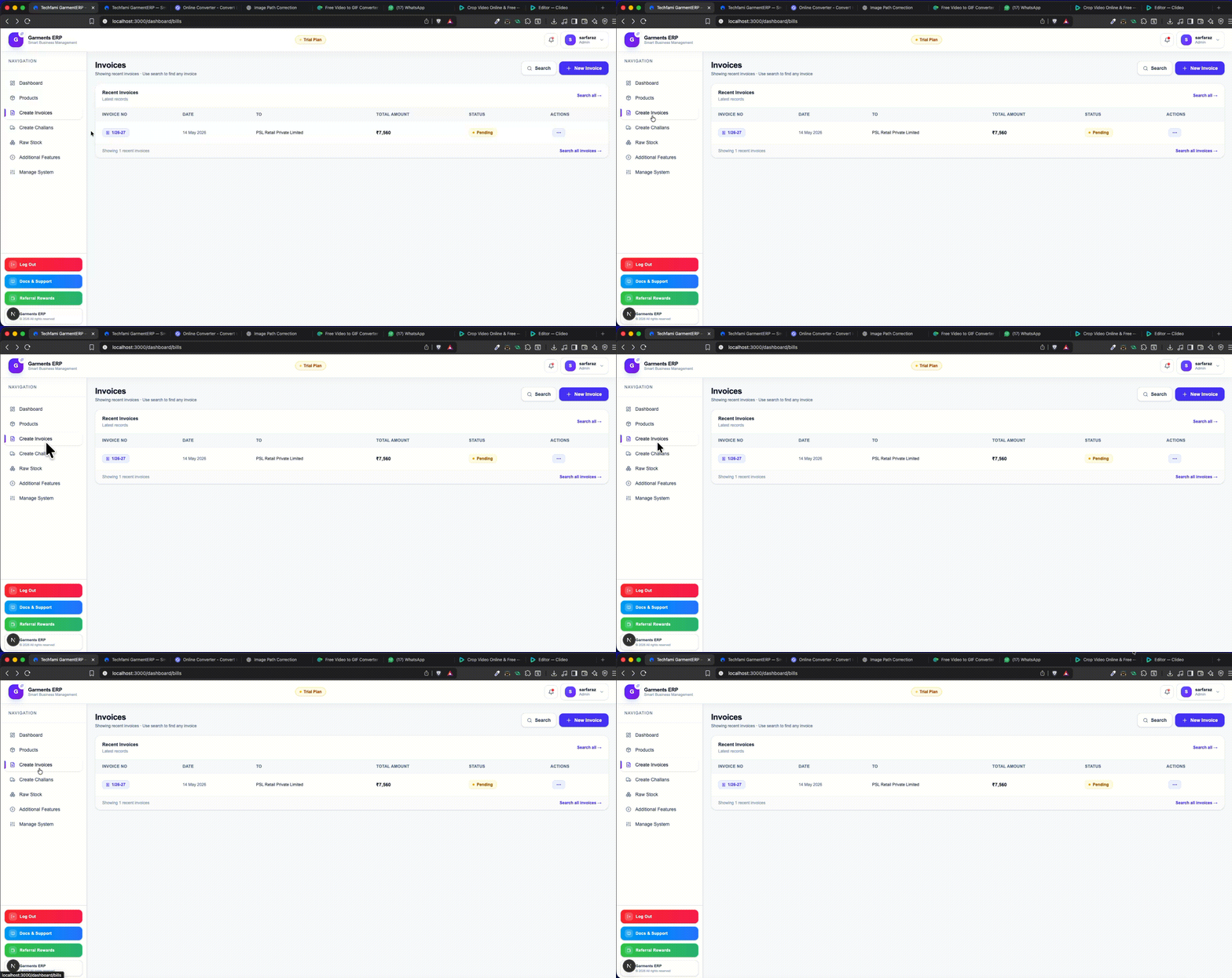
Arrow points to 'Create Invoices' in the left sidebar
Press the 'New Invoice' button
On the invoice list page, click the 'New Invoice' button at the top right corner of the screen. This opens the invoice creation form.
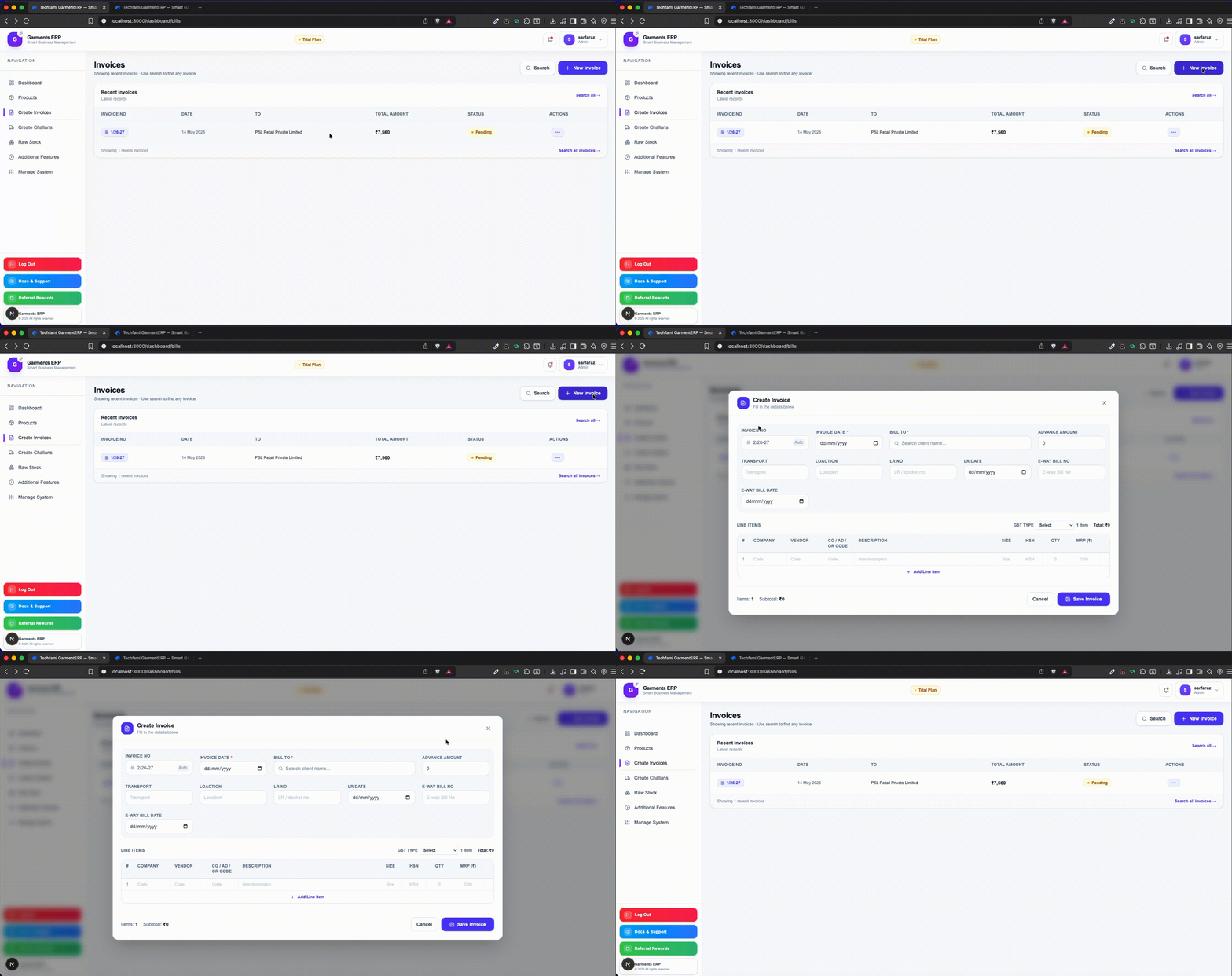
Arrow points to the blue 'New Invoice' button at top right
Select the client address
Click the 'Client (TO)' dropdown and select the client you want to bill. These addresses are saved in Address Management. If your client is not listed, go to Settings → Address Management and add them first.
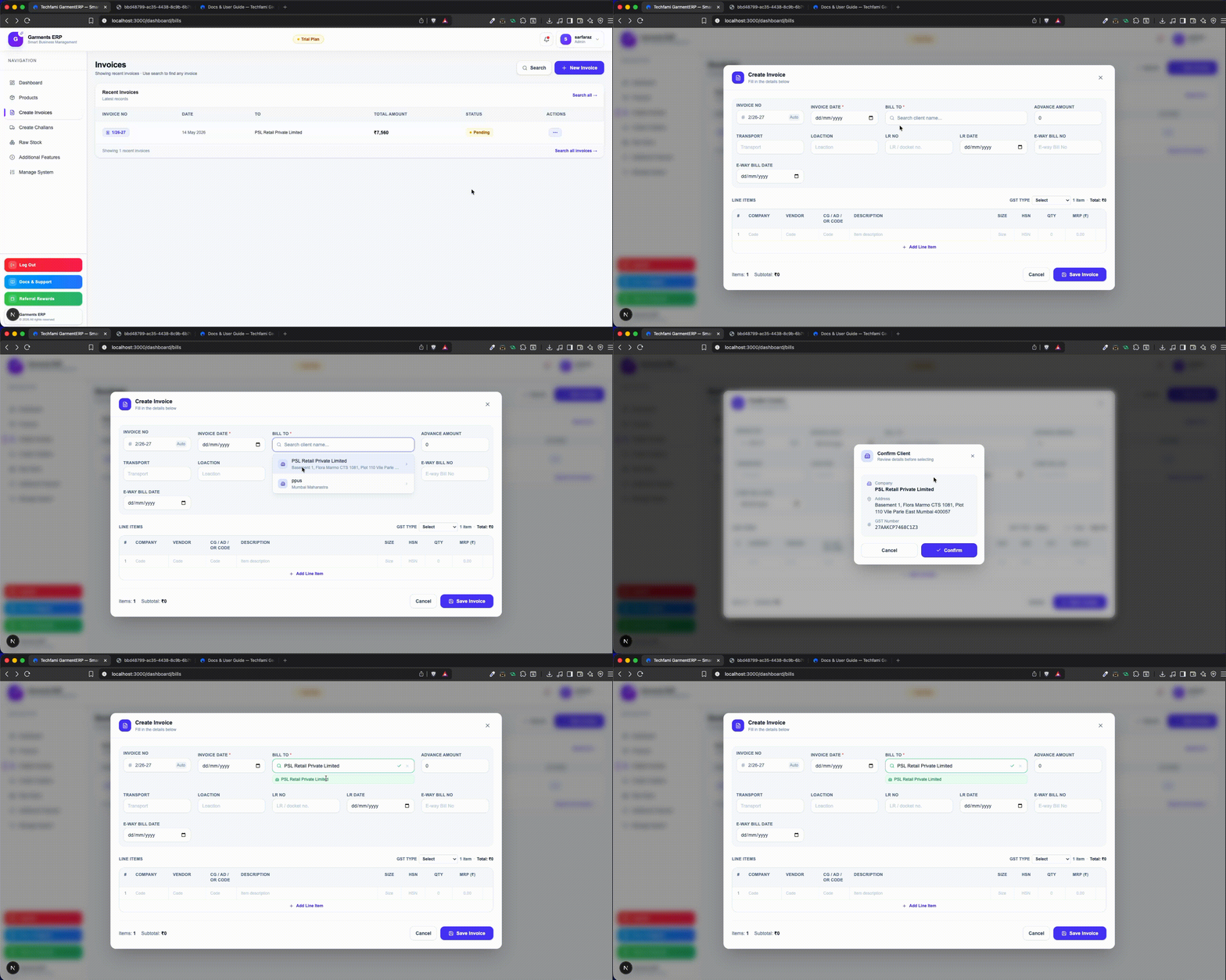
Arrow points to the client dropdown field
If the client has a GST number saved, CGST/SGST or IGST will be calculated automatically based on the state.
Fill in invoice details
Enter the Invoice Date, check the Invoice Number (auto-generated Eg- 1/26-27), select Financial Year, and choose GST Type — IGST for clients in a different state, CGST + SGST for same state.
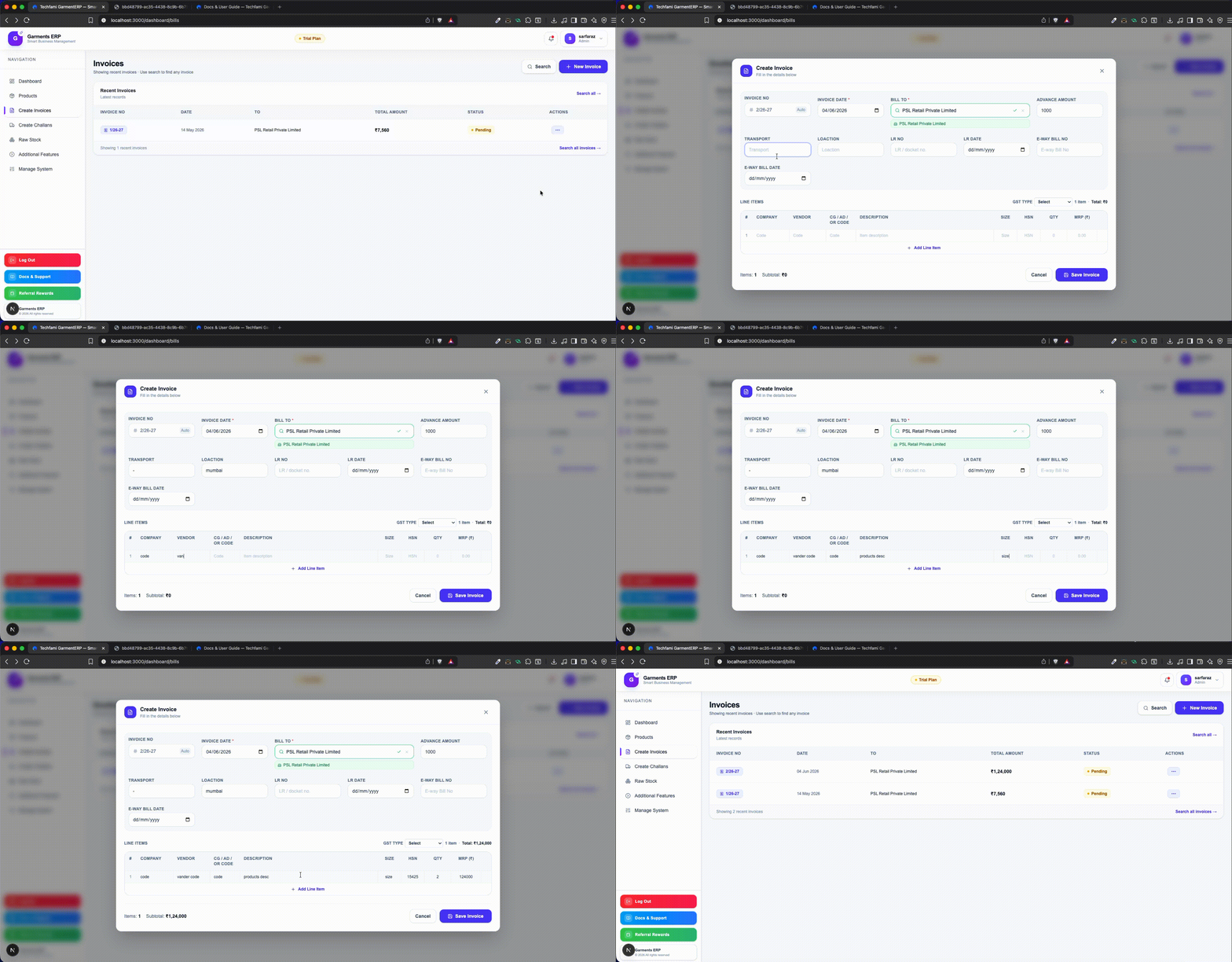
Arrow points to the GST Type selector
IGST = Inter-state (different state). CGST + SGST = Intra-state (same state as your company).
Click Save Invoice
When everything looks correct, click the green 'Save Invoice' button. The invoice is saved with status 'Pending'. You can now view, edit, or download it as a PDF.

Arrow points to the Save Invoice button
Click the PDF icon on any invoice in the list to download and send to your client.
After Creating — What You Can Do
Edit
Change any detail on a saved invoice — client, date, products or GST type.
Steps
- 1
Go to the Action column
- 2
Find the invoice you want to edit
- 3
Click the Pencil (✏️) icon on that row
- 4
Make your changes in the form
- 5
Click Save Changes Invoice to update
Screenshot
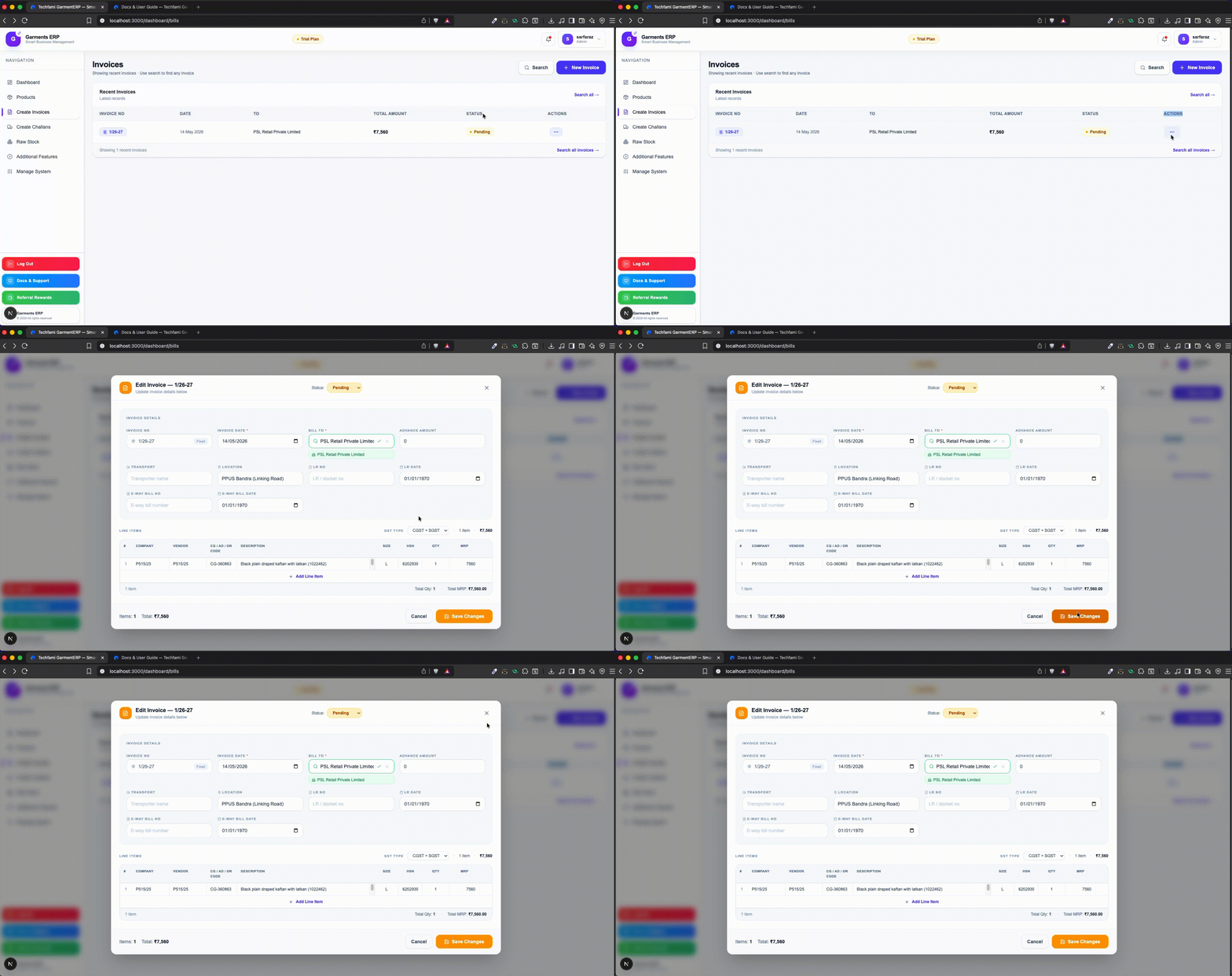
Arrow points to the pencil icon on the invoice row
Video Guide
Video coming soon
A step-by-step video for How to Create a GST Invoice will be added here.